Teams
Permissions, invitations and join code — explained simply.
One team = one team
Every team in SportsFlow is its own team with its own roster, its own matches and its own subscription.
You can be in several teams and switch between them at the top of the bar.
Permissions
Every member has their own permissions. The quickest way is a template:
| Template | Can |
|---|---|
| Coach | everything, including admin |
| Goalkeeper | edit opponents (names, rosters) and scout them, maintain shooter profiles |
| Tracker | create and track your own matches, roster, screens and actions |
| Player | own dashboard and stats, published preparation |
If no template fits, switch single permissions on or off. The member then shows Custom.
| Permission | Means |
|---|---|
| Admin | members and permissions, invitations, join code, subscription, import, sharing, seasons, changing a video's assignment, pairing a match |
| Coach area | internal notes, coach-only clips, preparation before it's published |
| Tracking | create and track your own matches, roster, screens, actions, seasons, pairing a match |
| Video | upload and sync videos, cut clips in the video studio |
| Plays | create and edit plays and variants |
| Preparation | write and publish match preparation |
| Opponents | opponent names, rosters, merges |
| Scouting | scout opponents, maintain shooter profiles |
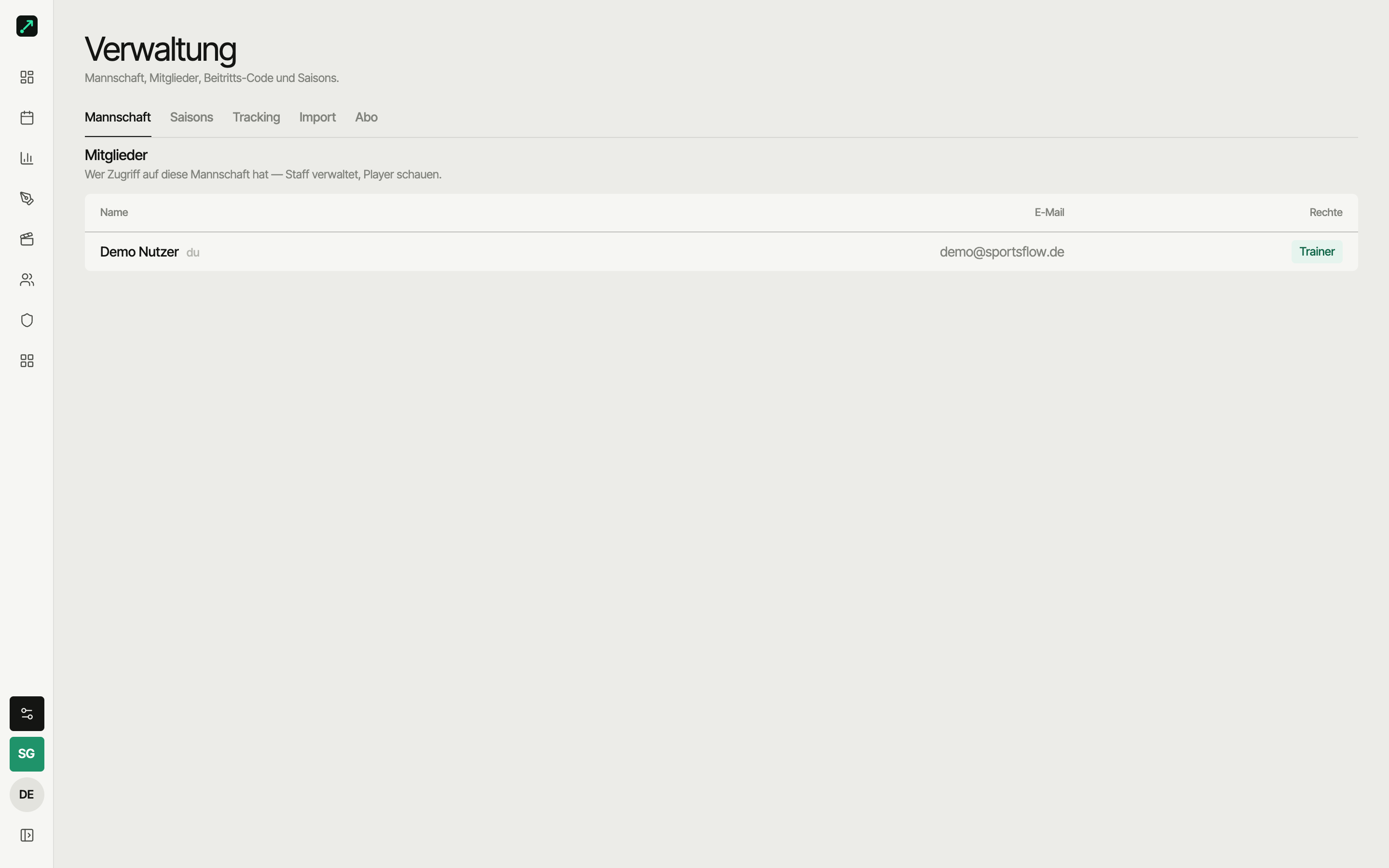
An admin changes permissions under Settings → Team tab ("Members" section, slider icon). You already pick the template when you invite someone. A team always has at least one admin.
Settings at a glance
The tabs under Settings: Team · Seasons · Tracking · Import · Subscription. Without the admin permission you only see Team and Seasons, with tracking also the Tracking tab.
| Tab | What's there |
|---|---|
| Team | Name, join code, members & invitations, manage opponents |
| Seasons | Create and edit seasons |
| Tracking | Default tracking depth for the team |
| Import | Connect schedule import |
| Subscription | Plan, invoices, launch offer and referral |
Joining
Join code
- One code per team (8 characters, easy to read out)
- A coach can regenerate it — the old code then stops working
- Joining always happens as a player (a coach can promote later)
- Copy code copies just the code, Share invitation sends a ready-made text with code and link, e.g. via WhatsApp
Invitation by email
A coach enters an email → the person gets a link → clicks it and they're in. If the app is installed (version 1.0.4 or later), the link opens the invitation right in the app.
Default team
When you log in you land in your default team. Switch via the team square at the bottom of the icon rail (native: Profile → Teams) or in your profile; that's also where you set a new default.
Bring another team along
Card "Bring a team along" (Settings → Subscription tab, dashboard banner): copy the link and pass it on. Once the team you referred tracks their first match, your team gets extra months of the Team plan. Details: Billing.
Leaving / deleting a team
- Leave: anytime
- Delete: coaches only, with a safety check (type the name) — all of this team's matches go with it