Tracking screens
Which action groups you see while tracking — and what happens when you tap them.
While live tracking you see big tiles — like "Shot on goal", "7m", "Turnover". This page explains how to adjust the overview to your team.
Two things to keep in mind
- Screen — which action groups you see while tracking, and in which order.
- Follow-up questions — what SportsFlow still wants to know after you tap (success? From where? Who?).
SportsFlow ships ready-made default screens for handball: Complete, Attack phase, Defense phase. You can freely adjust them on every plan — custom actions come with Team season.
Editing a screen
Go to Tracking screens in the app (native: More → Screens).
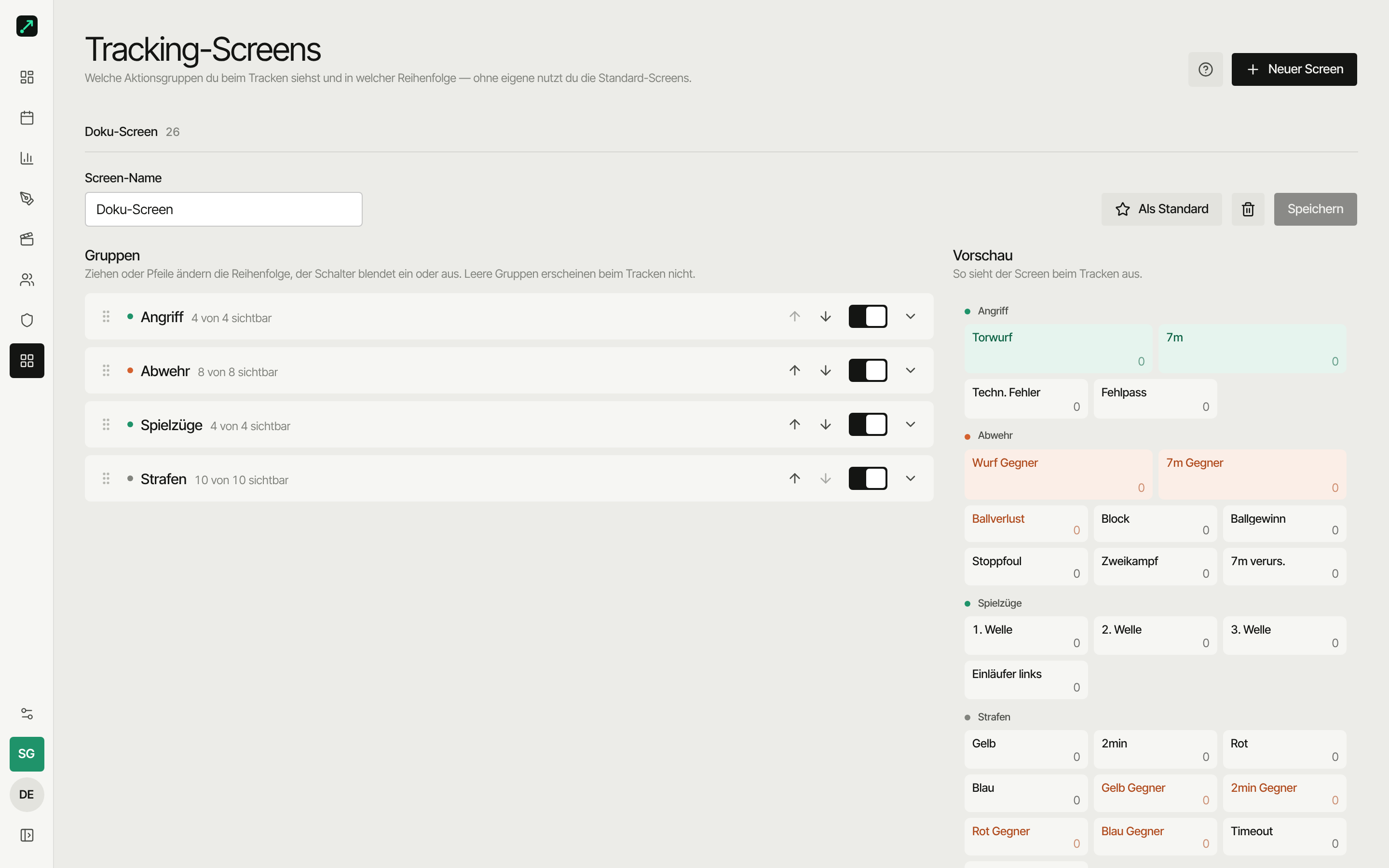
- On the left, a sortable list of groups (Attack · Defense · Set plays · Penalties). Each group expands into a sortable list of its actions.
- Every group and every single action has a visibility switch; the group shows for example "4 of 6 visible".
- Reorder by dragging (mouse) or with the arrow buttons.
- On the right you see the preview — this is how the screen looks while tracking.
- "New screen" creates a screen — empty, or based on a default screen as a template.
Different actions in the 1st and 2nd half? Create two screens — e.g. "Attack 1H" and "Attack 2H" — and switch between them at the top of tracking.
Creating custom actions
From Team season you can build custom actions. For each one you set what SportsFlow asks afterward:
| Setting | What it means for you |
|---|---|
| Side | Own action or opponent action |
| On success counts as a goal for | Nobody, us, or the opponent |
| Success (goal / no goal) | "Did it go in?" |
| Shot position | Don't capture · Zone (tap) · Exact position |
| Goal map | Don't capture · Zone (tap) · Exact position |
| Player | Who did it? |
| Assist | Who set it up? |
| Shot type | Jump shot, standing throw … |
Trajectory and game situation can be captured too.
Play actions link to a drawn play — while tracking you then pick the play and whether it worked.
Free plan
On Starter (free) you use the ready-made handball actions and arrange them freely in your own screens. Custom actions come with Team season.
Tips from the sideline
- Not too many actions — better to hide a group than show 30 tiles.
- Drag frequent ones up — order within the group decides what sits at the top of the screen.
- Keep plays in their own group — don't bury them among single actions.
- Short names — "7m" instead of "7-metre throw without goalkeeper".
Next
- Live tracking — the flow on match day
- Plays — draw plays and measure success