Present
Video sessions on a projector or TV — scenes by tag, pick a flow, draw live, control with a clicker or the iPad.
Present shows the scenes of a preparation for a video session: on a projector, a TV or the big screen in the locker room. You only see the picture — no timeline, no inspector. Present works on the web and on the iPad, as part of the Pro plan.
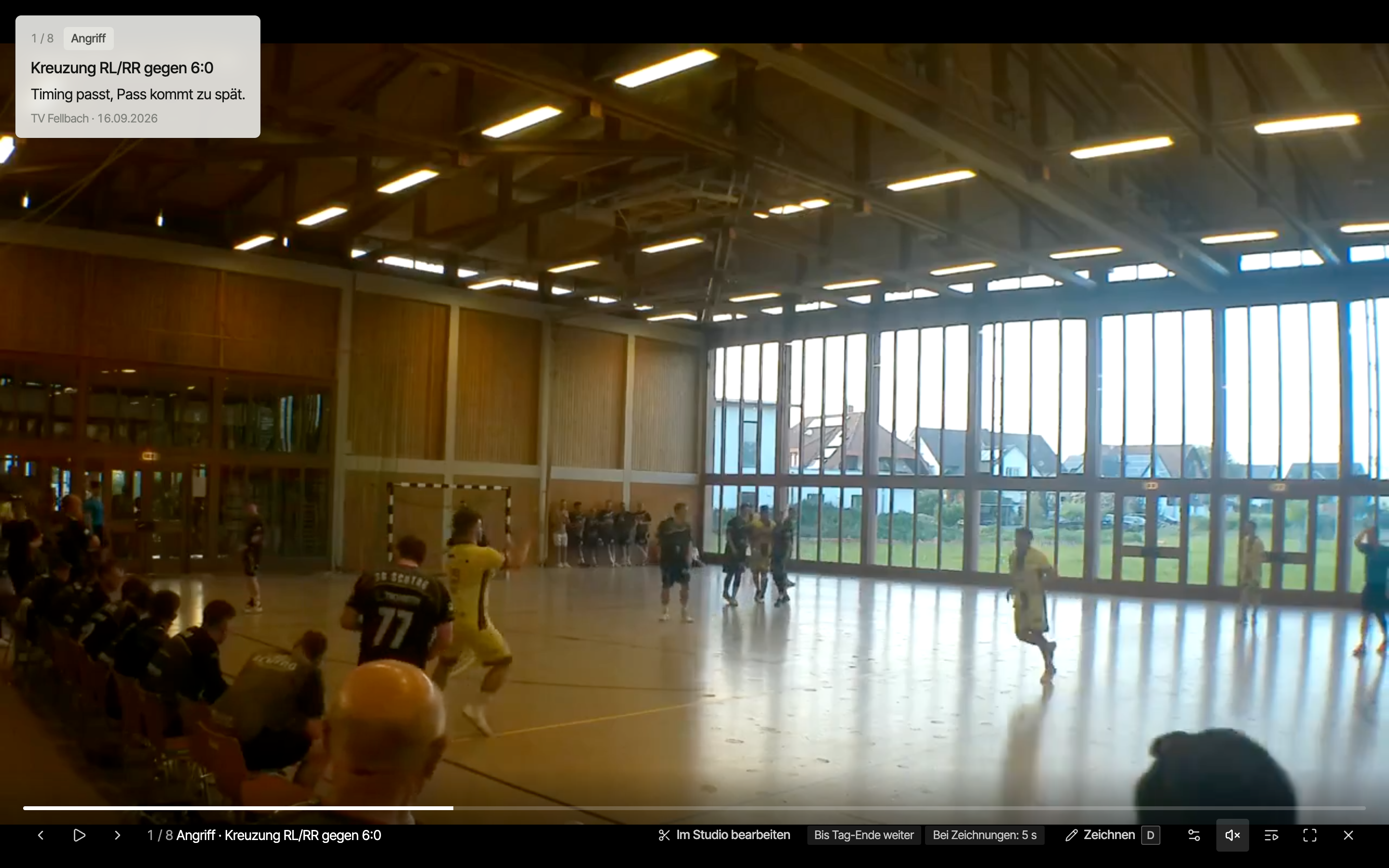
How a video session runs
- Cut and tag scenes in the video studio.
- Open Present — top right in the studio, or in the preparation via Play all or a tag tile (once there are scenes).
- Connect the laptop or iPad to the projector or TV, switch on Full screen.
- Play through the scenes, explain at the drawings, draw live on top if needed.
Scenes are grouped by tag, in the order of your tags: first all attack scenes, then defence and so on. If a scene has several tags, it shows up under each of them. The preparation lists scenes with the same grouping and order.
Flow
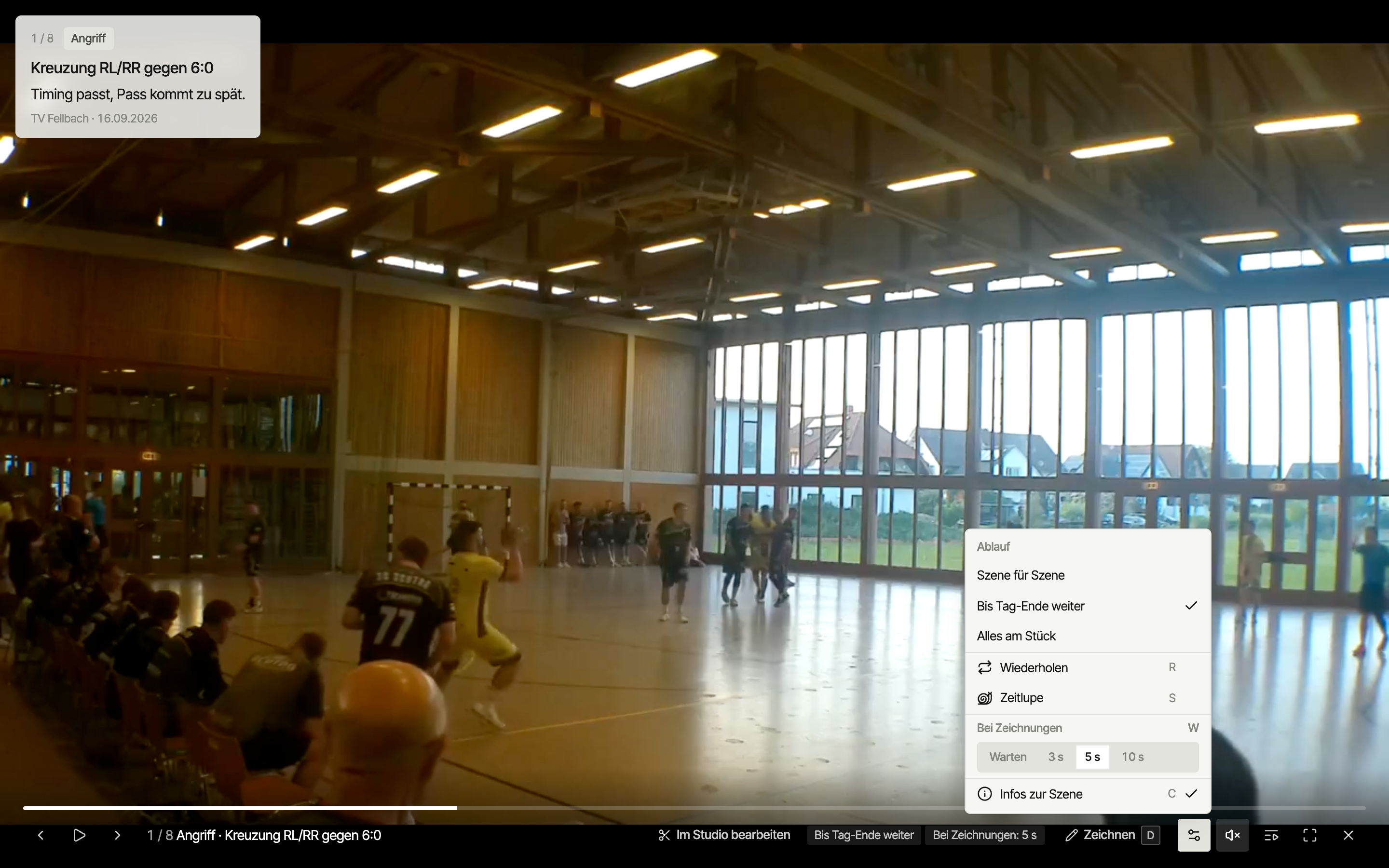
Under Settings (gear) you choose how it moves from scene to scene:
| Flow | Behaviour |
|---|---|
| Scene by scene | Stops after every scene. You decide when to move on. |
| Continue to end of tag (default) | Plays all scenes of a tag and stops before the next tag — time to talk it through. |
| Play everything | Runs through all scenes without stopping. |
Plus four switches:
- Repeat — loop the current scene.
- Slow motion — play slower.
- Wait at drawings — the video stays on each drawing until you continue. Without it, it plays on by itself after the freeze length.
- Scene info — show or hide the info card.
Each device remembers its settings: the projector laptop keeps its flow. Whatever's active shows in the bar at the bottom.
Info card
Top left, every scene gets a card: number, tags, title, comment, involved players and the match it comes from. So the team always knows what to watch for — even for scenes from an observation.
Clip list
The clip list shows every scene by tag.
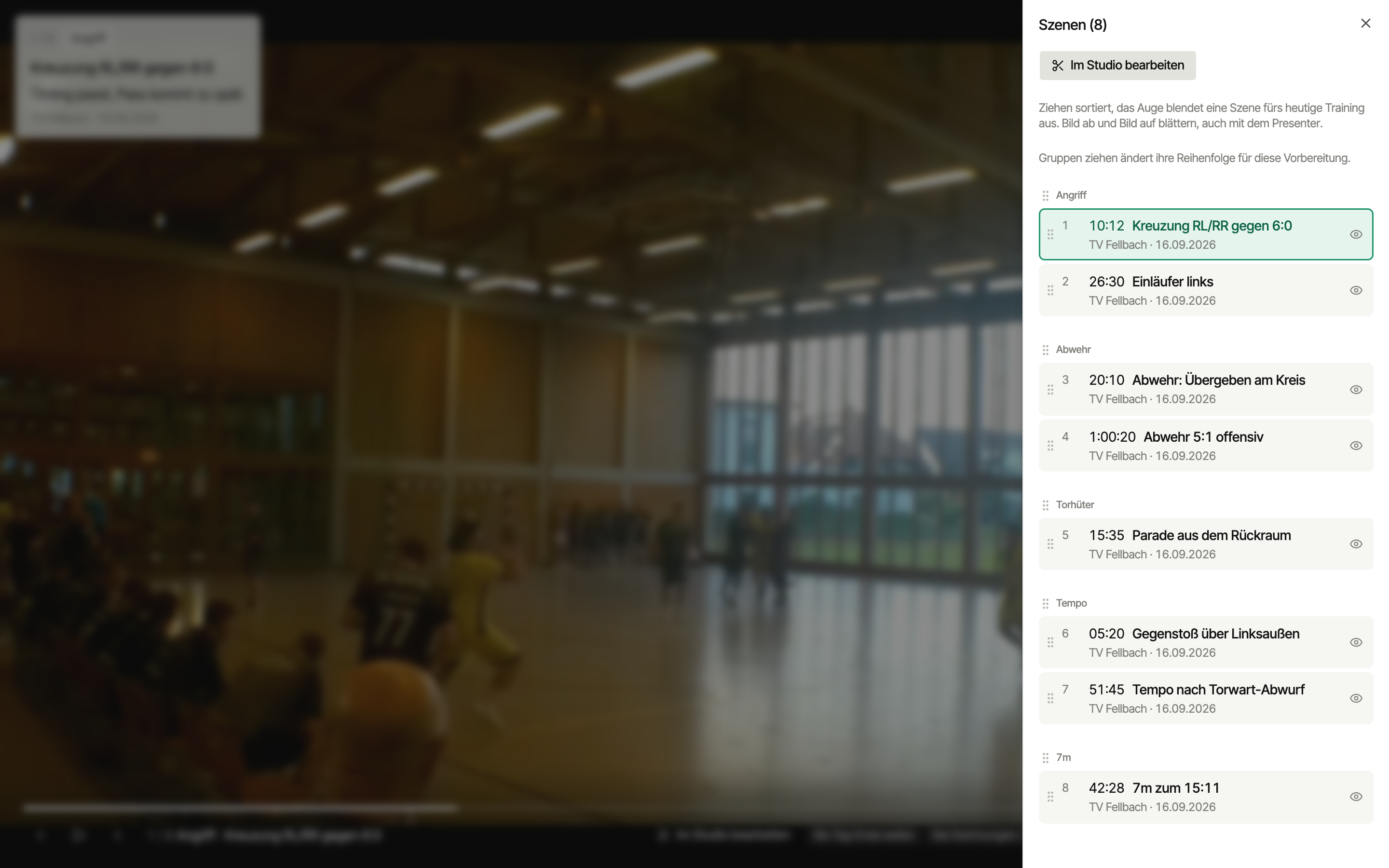
- Drag to reorder — within a tag.
- The eye hides a scene for today's session. It stays in the preparation, it's just skipped today.
- Click a scene to jump to it.
Seeking and drawing live
- Click or tap the progress bar to jump within the scene.
- Draw puts a live drawing over the picture — for explaining in the moment. It isn't saved. Permanent drawings go in the studio.
Controls
Keyboard and clicker (web)
A presentation clicker usually sends Page Down and Page Up — that works out of the box.
| Key | Action |
|---|---|
Space | Play / pause (at a drawing: continue) |
Page Down, →, N | Next scene |
Page Up, ←, P | Previous scene |
Home | Restart scene |
R | Repeat on/off |
S | Slow motion on/off |
W | Wait at drawings on/off |
C | Scene info on/off |
L | Clip list |
D | Live drawing |
F | Full screen |
Esc | Discard live drawing |
iPad
On the iPad you swipe in the picture to the next or previous scene. At a drawing, a tap plays on. In the clip list you reorder with long press and drag. The picture gets to the projector or TV via AirPlay or an HDMI adapter.
For players
The same view is the preparation's player: Play opens it for coaches and players alike. Players get a watch-only version — no drawing, Your scenes first — on the phone too. A scene counts as watched once the player leaves it or it plays to the end. Video sessions on the projector with drawing and settings are web and iPad only.
Next
- Video studio — cut scenes and draw freeze frames
- Preparation — share scenes so players can watch them at home too