Live tracking
How you track from the sideline — step by step.
Tracking runs full-screen on a tablet or phone at the sideline. Large tiles, little distraction — so you're not searching when the nerves kick in. Light is the default; switch to dark or system in the avatar menu.
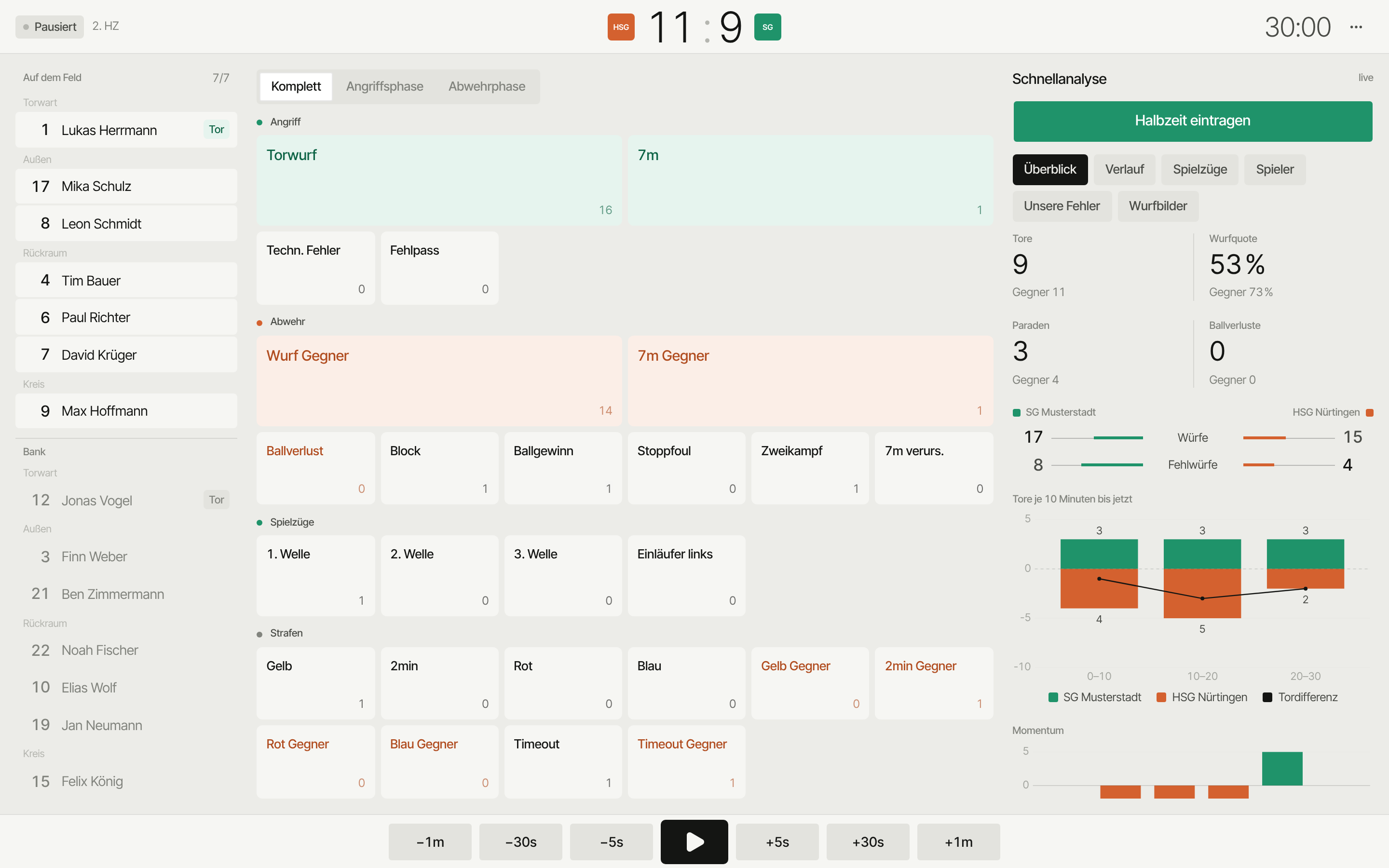
The flow
- Choose a screen — a picker up top, e.g. "Complete", "Attack phase", or "Defense phase". Every screen shows the same fixed groups — Attack · Defense · Set plays · Penalties — only which actions are visible inside them differs.
- Tap an action — e.g. "Shot", "7m", "Turnover".
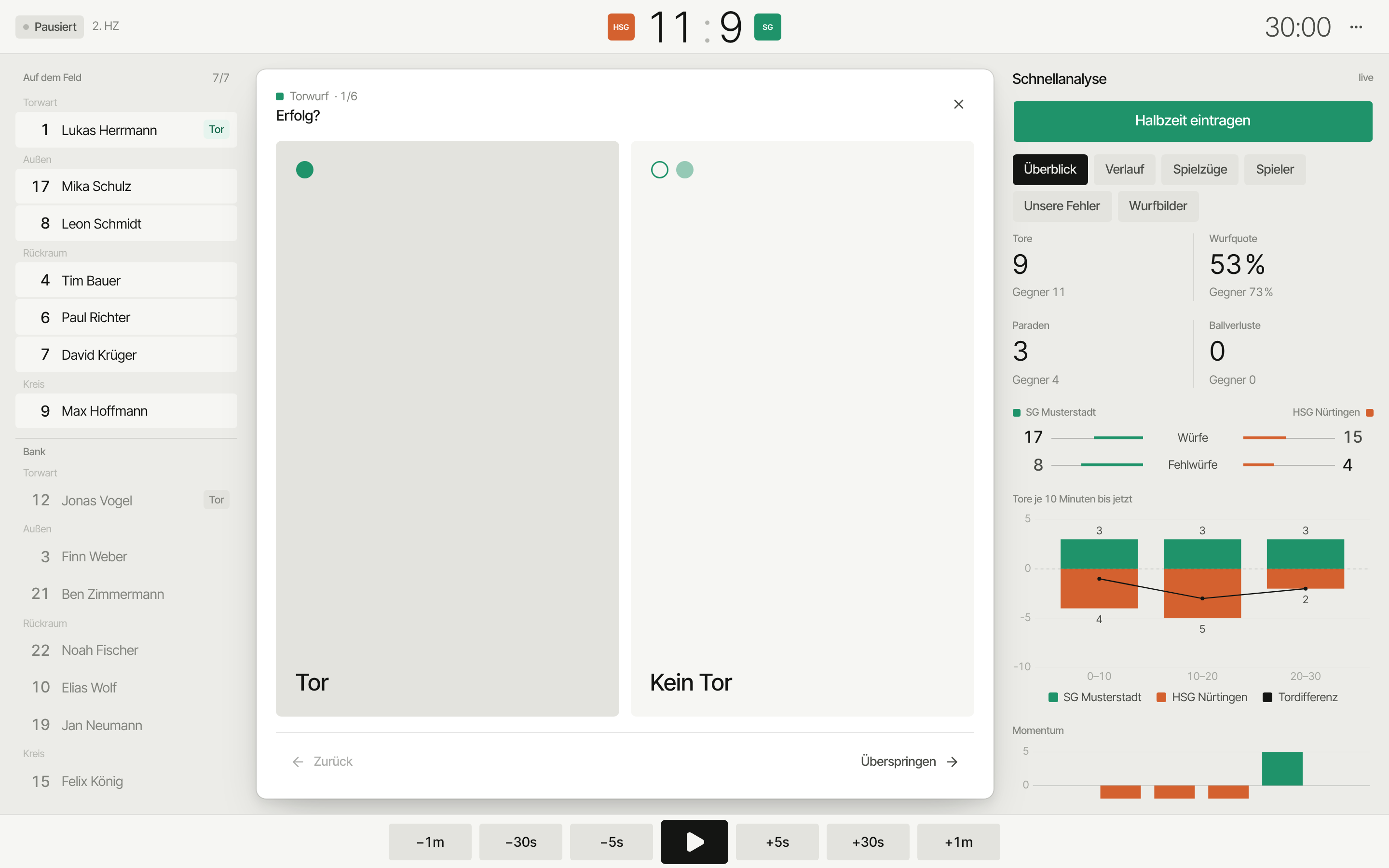 3. Answer the questions — only what's needed: success? From where? Where to?
4. Done — it's in the history, the score updates.
3. Answer the questions — only what's needed: success? From where? Where to?
4. Done — it's in the history, the score updates.
Some actions (e.g. a timeout) need no follow-up questions — one tap is enough.
What questions come up?
Depending on the action, SportsFlow asks step by step:
| Step | Meaning |
|---|---|
| Success? | Did the shot go in? (skipped if the tile already fixes the outcome) |
| From where? | Shot position on court |
| Where to? | Goal map |
| Details | Shot type, trajectory, situation |
| Who? | Which player |
| Goalkeeper? | Which goalkeeper was in goal |
| Assist? | Who set it up |
Which steps show up at all depends on the tracking depth (off · zones · exact — set separately for shot position and goal map). More depth costs 1 extra tap per shot but gives sharper shot maps. You set the default under Admin → Tracking; in a match you override it via the ⋯ menu → Tracking settings.
In the goal map: filled = goal, outline = saved, faint = wide or blocked — color always shows the team (green = yours, orange = the opponent), never the outcome.
You can skip every step — better to track fast than perfectly.
For the goalkeeper: on an opponent shot and on an opponent 7m, the step "Goalkeeper?" always comes up — your goalkeepers are offered, with whoever's already on court listed first. You can skip it; there's no preset and no longer an "in goal" chip.
SportsFlow never asks for the opposing shooter: in your own match, the opponent stays playerless — shot location, goal map, and shot type get recorded. Who's shooting for the opponent is something you collect in an observation — that's what builds the shooter profiles.
Paired match
If your opponent uses SportsFlow too, you can pair the match. Then each side only tracks its own attack: your shots and 7m throws land with the opponent as opponent shots — with shot position, goal corner and jersey number — and theirs arrive with you. These entries (badge from opponent) are read-only; all you do is assign your goalkeeper.
Controls
- Next — save the answer
- Back — change the last answer
- Skip — move on without an answer
- Cancel — discard the action
Screen, lineup & quick analysis
The layout adapts to the screen — nothing scrolls:
- Wide screen (desktop/large tablet): lineup on the left, actions in the middle, the quick analysis live on the right.
- Tablet: two views at the top — Capture · Analysis.
- Phone: three views at the top — Capture · Analysis · History.
On tablet and phone the lineup sits as a thin strip above the actions — tap it to open as a sheet.
Split view with video (Pro)
Tracking from the linked video — e.g. tracking afterwards via Track on video in the video studio — puts the actions on the left (two thirds) on iPad and in a wide browser, with a column on the right (one third) that you switch between Quick analysis and Video. The video keeps its spot when you switch; jumping from the history switches to the video. From Pro, not on phones.
History & undo
You see all entries chronologically in History (tablet/desktop: a topic of the quick analysis; phone: its own tab). Above the list you filter by action and player. Tapping an entry opens its detail view. Undo only works there — for the most recent entry — and corrects the score too.
Footer & match clock
At the bottom you control the match clock: −30s / −5s · Start/Pause · +5s / +30s (on wide screens also ±1 min). Half-time, full time, tracking settings, full screen and speed live in the ⋯ menu top right. Details on the clock: Match clock & lineup.
Tracking afterwards & speed
Once a tracked match ends, the tracking button disappears from the match page. Instead, you open tracking via the match page's ⋯ menu → Track afterwards (same on web and app). Everything works like live tracking — e.g. to add plays or forgotten actions after the fact.
Speed goes along with that: in the tracking menu (⋯ top right) → Speed you choose 0.5× / 1× / 2× / 4× — the match clock ticks faster or slower accordingly, handy when tracking afterwards from video. Live matches always start at 1×; for finished matches, SportsFlow remembers your choice.
Video sync
At a speed other than 1× or while tracking afterwards, no video sync marks get created — automatic video matching relies on live tracking's marks or the audio-track analysis. Marks that already exist stay intact.
Observations
For an observation — scouting a match between two opponent teams — a dedicated screen with four steps runs instead of the action groups: who's shooting? · shot location · result · how and where? No action grid, no clock, no score, and no minute. A linked video plays alongside (from Pro), but it doesn't supply time — the shots carry no timestamp. Details: Observation.
Score
Goals automatically count for your team and the opponent — from your perspective, regardless of home or away. An observation has no score: it collects shot charts, not a logged match.
Who's allowed to track?
In your own match, only staff. Players see the analysis afterward but don't track themselves — except for observations: goalkeepers (linked roster player, goalkeeper position) can record those too, see Who can create, record, edit, delete?.
Several coaches can track the same match at once, each on their own device — split the work, otherwise it counts twice. Details: Several devices on the same match.
Next up
- Observation — record a match between two opponent teams as a shot chart
- Quick analysis — coach view with overview, plays, players and shot charts already during the match
- Customize tracking screens
- Without internet
- Match clock & lineup