Plays
Draw plays, play them back and measure success while tracking.
Plays are your digital playbook — drawn, animated and measurable.
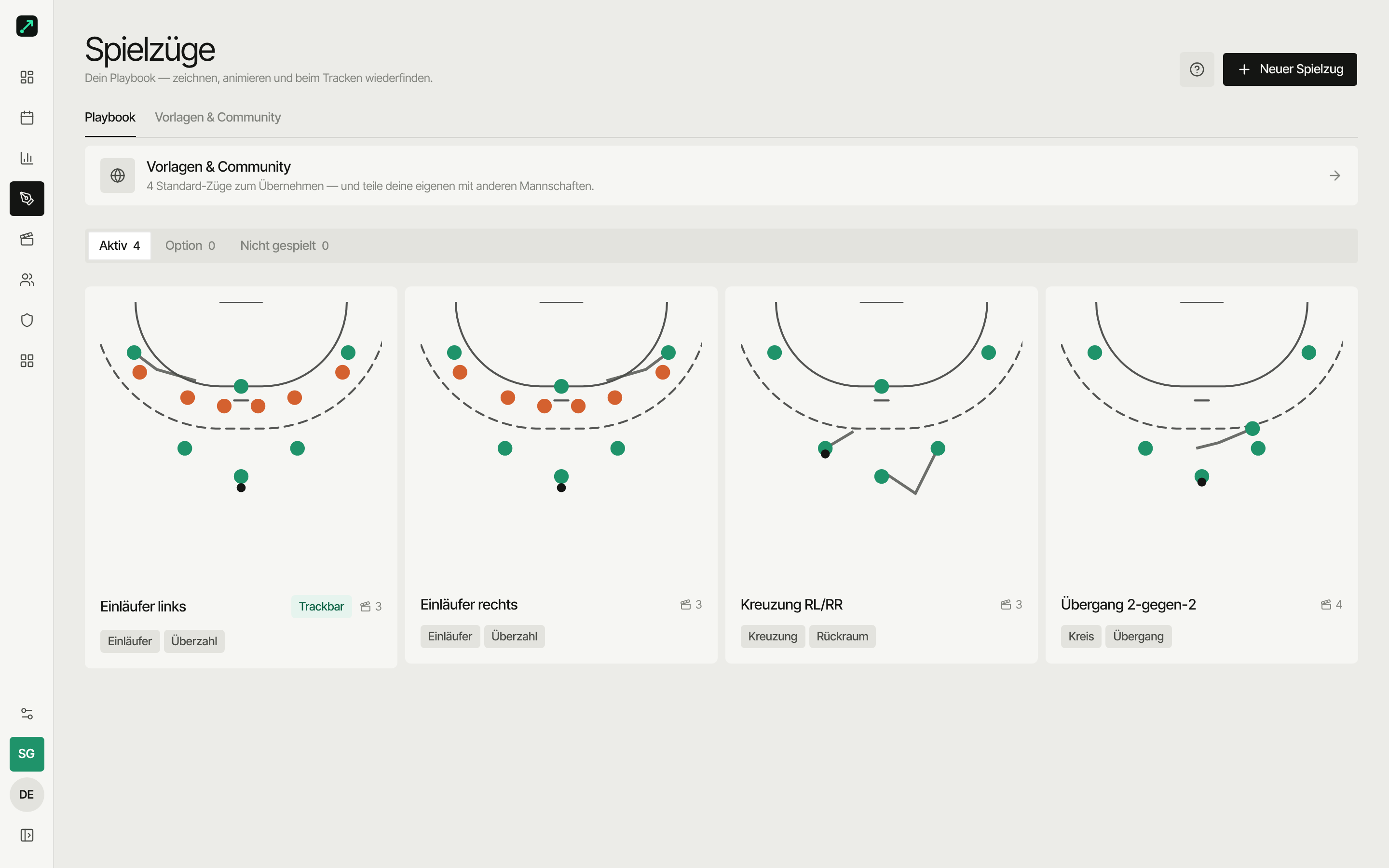
Creating a play
Under Plays in the app:
- Place the lineup on the court
- Draw with the run path, pass and screen tools
- Next step — SportsFlow animates in between
- Optionally add a note per step, e.g. "CB crosses with LB"
Everything is saved automatically.
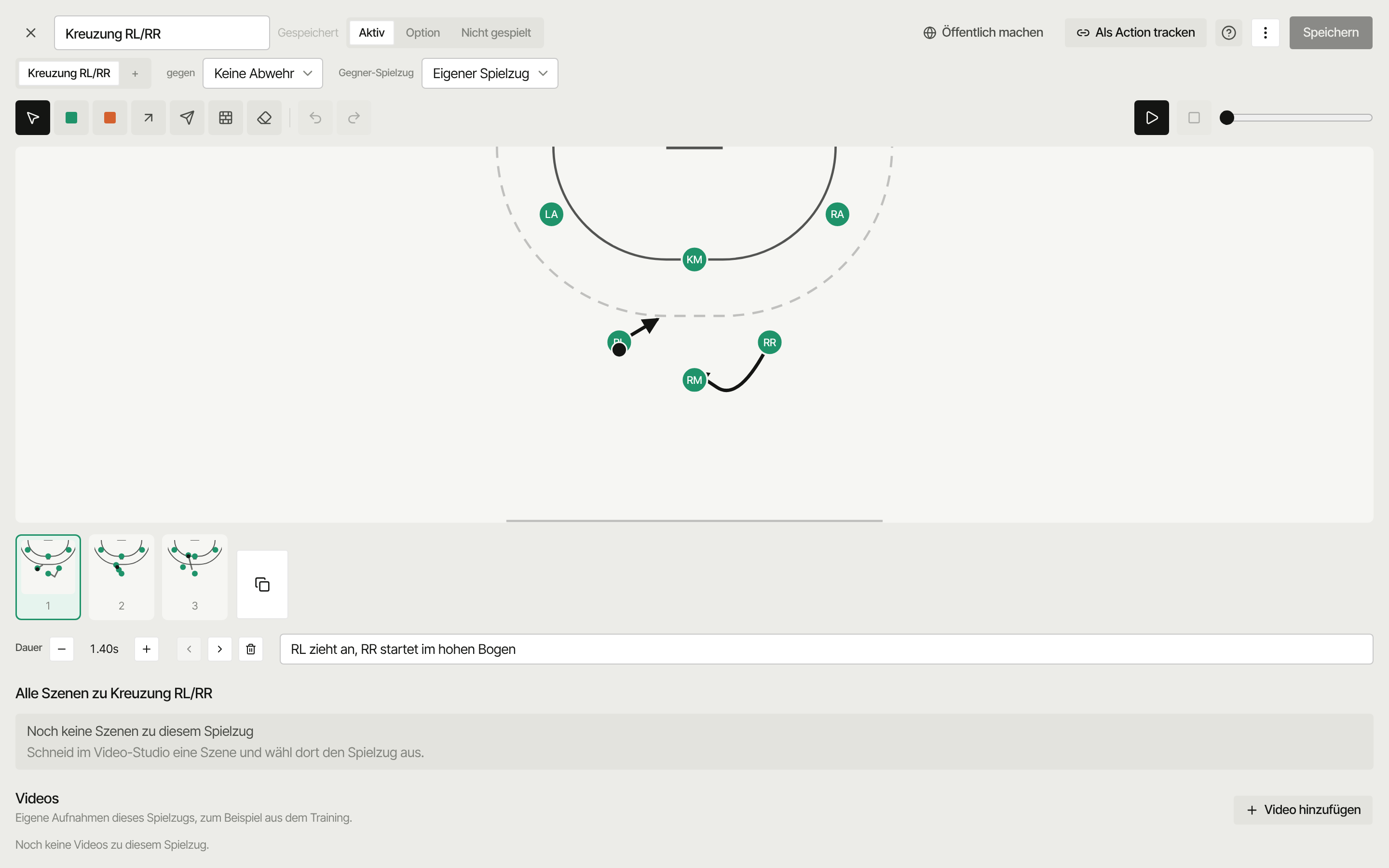
Binding a run path to a player
The run path tool can be bound to a player: tap the player and drag to the next frame — SportsFlow shows the hint "Tap a player to draw their run path to the next frame". The endpoint is the player's position in the next frame; if it doesn't exist there yet, SportsFlow creates it. Both ends stay in sync — move the player in either frame and the run path follows.
During playback, the player follows the drawn curve instead of a straight line, and a run path bound to a player stays visible everywhere — in previews and on shared links too. Old run paths without a player binding stay straight as before.
If a run path between two frames cuts straight through your own 6m area, SportsFlow shows the hint e.g. "Leon runs through the 6m area in frame 2 → 3" with a "Draw run path" button — it picks the frame and tool automatically so you can draw the path around the outside.
Family and variants
A play is a family with a name — under it, several variants can hang, e.g. "left" and "right" of the same run. In the editor you switch between variants via tabs at the top, and a + creates a new one.
- Mirror — automatically generates the opposite side from the current variant: the court gets mirrored, player labels swap sides (LW↔RW, LB↔RB), defence labels get renumbered from the left.
- Duplicate — either as a separate play (new family) or as another variant of the same family.
- Set up defence — puts defenders 1–6 into a formation (6:0, 5:1 or 3:2:1) in every step of the current variant. Existing defenders and their runs are replaced, attackers and ball stay; undo brings the old state back. Which defence the play is designed against is set separately under Against defence — that's just a tag, the drawing doesn't change.
With mirror, SportsFlow remembers the counterpart — if you later change one side, SportsFlow asks once per session whether the other side should be adjusted too. A duplicated variant, on the other hand, is an independent copy with no counterpart.
Status
Every family has a status you switch at the top of the editor:
| Status | Meaning |
|---|---|
| Active | Shows up as its own tile while tracking. |
| Option | Stays visible and selectable everywhere (playbook, preparation) — but without its own tracking tile. |
| Not played | Out of the active playbook and the preparation selection, without deleting the recording. |
The overview filters to Active by default — use the filter to also see Option and Not played.
Sides while tracking
While tracking, the family is what counts, not the side: an active family is exactly one tile, no matter how many variants it has. Left and right stay a matter of the drawing — for discussion, not for the stats.
Opponent plays
A play can belong to an opponent team instead of your own — pick this via "Opponent play" in the editor. The tactics board then recolours the roles (attack orange, defence green), the data itself doesn't change. Opponent plays always stay private and never show up in the exchange.
Ready-made templates
Typical handball plays are already included — copy, adjust, done.
Scenes for a play
Every family collects the video scenes linked to it in one place. You attach the play to a scene in the video studio: in the inspector under Play (with several variants, also pick the side). If the scene shows an opponent move that doesn't exist yet, Draw as play creates it right away and opens the editor. On the play's page you then open the "All scenes for …" reel and can optionally filter by side (left/right). Same in the Plays section of the preparation. Players only see scenes from shared preparations that aren't "Coaches only".
Videos for a play
You upload your own footage of a play, for example from training, right on the play's page under Videos. That needs the Video permission. Every team member sees these videos. If a video ended up in the wrong place, an admin moves it on the video detail page.
Measuring during a match
- While tracking, open the Plays tab
- Tap the play — done
You don't record success yourself: the follow-up action (shot, error …) automatically decides whether the play led to a goal.
SportsFlow counts:
- How often the play was run
- How often it worked — per family
In the season analysis, play usage shows how often you triggered a play in each match and what came of it.
Drawing and playback are free on every tier — tracking and measuring the success rate come with the Team plan.
Playback
The tactics board plays your steps back smoothly — good for briefings before a match.
Who sees what?
Every role sees the playbook — players and coaches alike, in the app just as on mobile: list, detail, animation, the shared scenes and the videos for the play.
Only coaches can edit, create and share. The editor, the status, the tracking tile and the exchange are staff-only; players land on the read view instead of the editor. They also see their plays in the preparation, and the results in the analysis.
In the app, plays sit under More.
Next
→ Play exchange — share plays with other teams