Video studio
Cut scenes, tag them, mark players and add drawings as freeze frames — on the web and on the iPad.
In the video studio you cut the scenes for the next match from the videos of a preparation. It runs full screen, on the web and on the iPad. The studio is part of the Pro plan and meant for coaches and scouts.
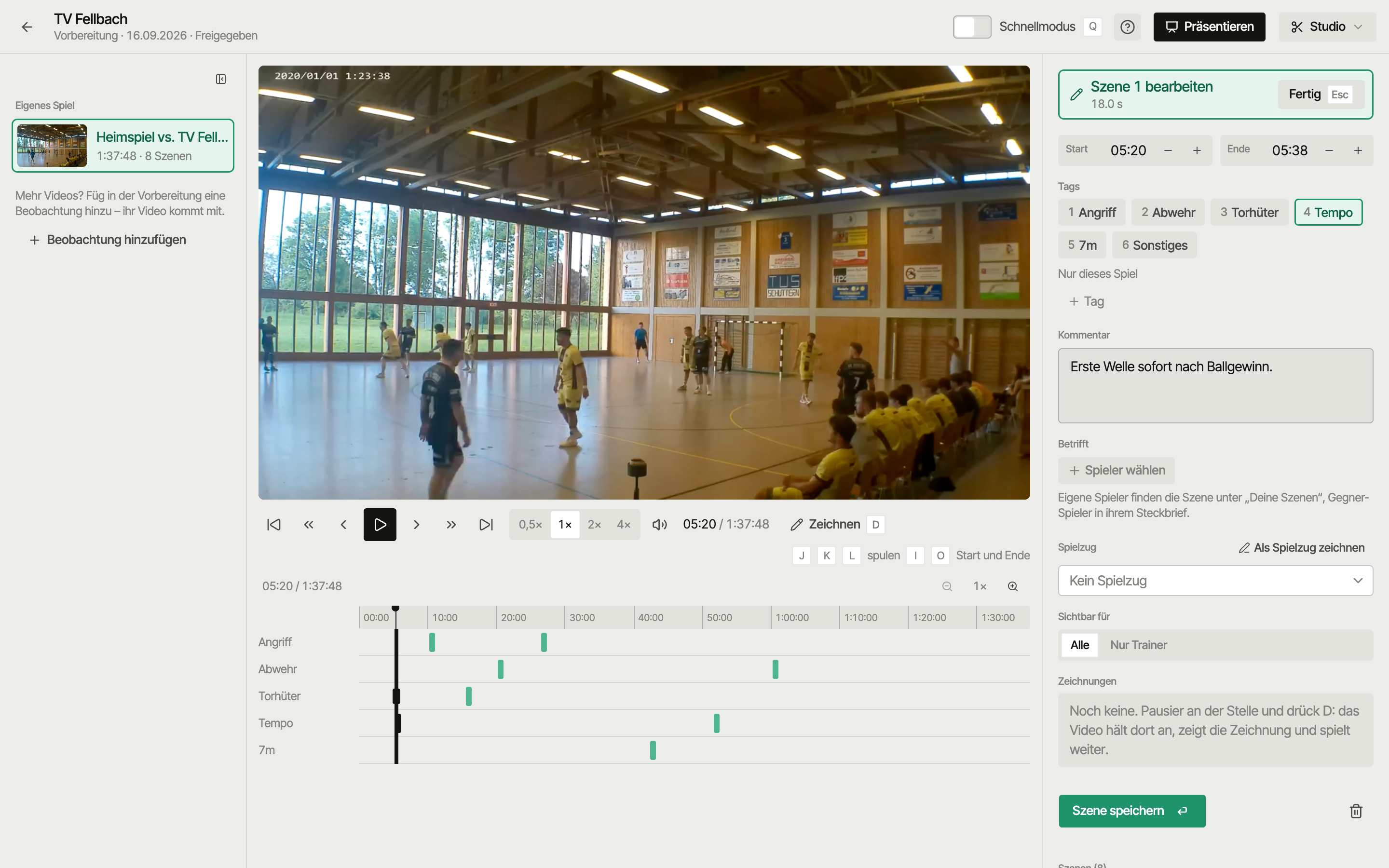
Opening the studio
Scenes always belong to a preparation — so you always open the studio from one:
- In the preparation's Video & scenes area via Video studio, or straight from a video card.
- On the match Overview via Open → Studio on the video card.
- While watching, via the scissors on an action — the studio jumps to that spot.
- On the video detail page via Tools, Cut in studio or Use in a preparation.
The header shows where you're cutting: Preparation · date · Draft or Shared. To the right, Track on video (add actions afterwards, see Live tracking) and Present (see Present).
Layout
| Area | Content |
|---|---|
| Left: Videos | All videos of this preparation, grouped into Own match, Scouting and Other videos, each with its scene count. Collapsible (key B). + adds a video — an upload plays right away while it uploads. |
| Middle: picture and timeline | Video, controls and below them the timeline: one lane per tag, zoomable, with a filmstrip preview. Click or drag to jump. |
| Right: inspector | The scene you're creating or editing: start/end, tags, comment, involved, play, visible to, drawings. Save clip and Discard stick to the bottom. |
Linked videos (YouTube, URL) don't run in the studio — upload the file to cut it.
Cutting a scene
- Go to the start of the scene and set the Start (
Ior the Start button). - Let the video run and set the End (
Oor the End button). Here takes the current position. - Pick one or more tags (keys
1–9toggle the first nine). - Optional: Comment ("What should the team see here?"), Involved, Play (see Plays) and Visible to.
- Save clip (
Enter). Discard (Esc) starts over.
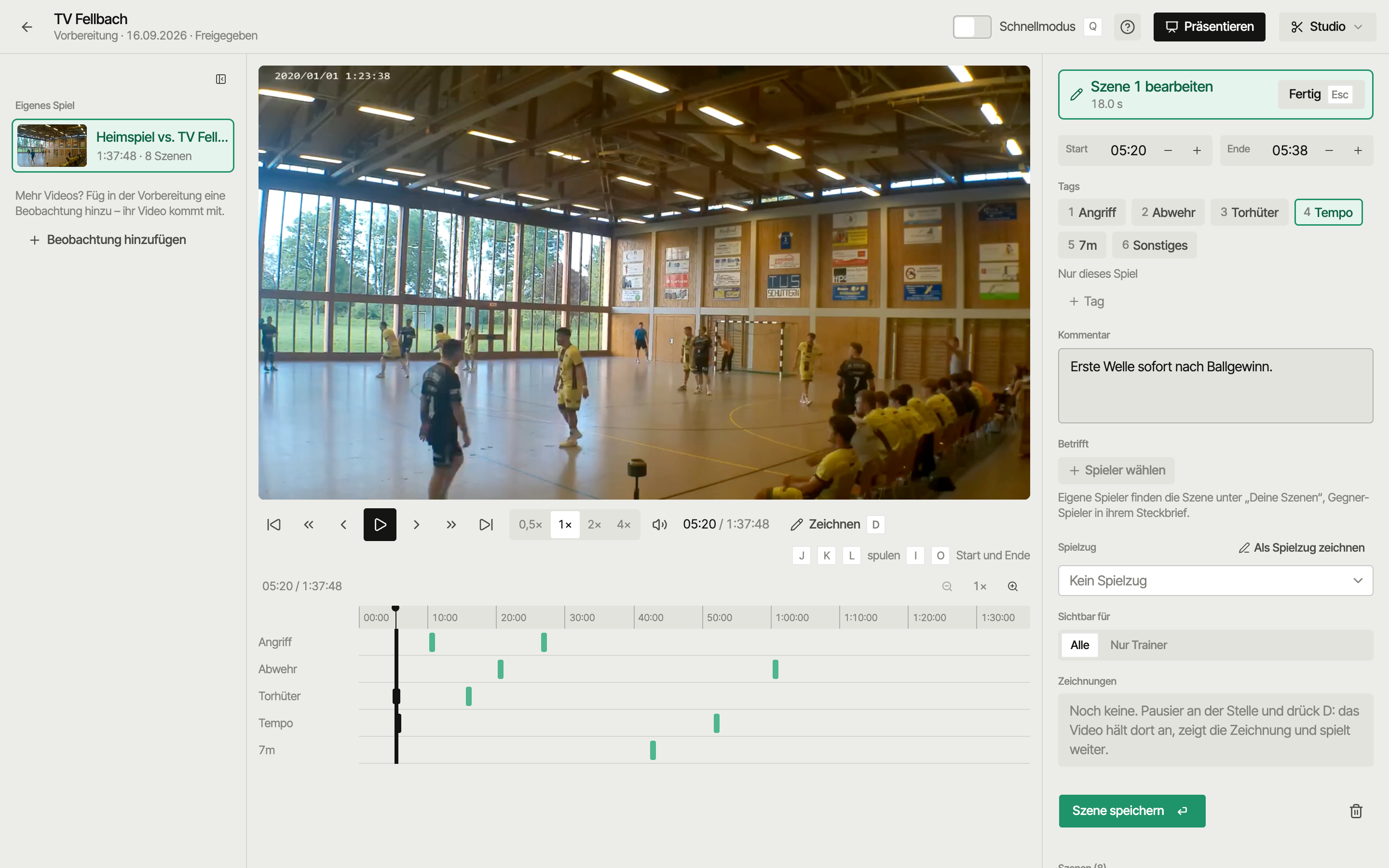
Saved scenes show as bars in their tag's lane. Click a bar to open the scene in the inspector again.
Tags
Built in: Attack, Defence, Goalkeeper, Tempo, 7m, Other. Create a new tag in the inspector via + Tag and choose its scope:
- This game only (default) — applies only in this preparation. For anything opponent-specific: "Back-court shots No. 7", "Cross left".
- For all games — becomes part of your fixed tag list and is ready in every preparation: "Fast break", "Getting back".
That keeps the picker short: opponent tags don't clutter every future preparation. Why both exist is explained in the glossary.
Import tags opens the list of earlier preparations with their own tags — matches against the same opponent come first. One click copies their "This game only" tags into the current preparation. The classic: first leg → return leg.
Involved
Under Involved you mark who the scene is about:
- Own players — from the Matchday squad or the Whole squad. The player finds the scene at the top of the preparation under "Your scenes".
- Opponent players — from the opponent roster (both teams for observation videos). The scene shows up in that player's shooter profile under "Scenes of No. X".
Visible to
- Everyone — anyone who sees the shared preparation.
- Coaches only — stays with the coaching staff, even after sharing. Good for scenes you only need as a note to yourself.
Quick mode
For lots of scenes in a row: turn on Quick mode (Q), pre-select tags, then I for the start and O for the end. The clip saves instantly and the video keeps playing — nothing to confirm. Ideal for a first pass; add comments and involved players afterwards.
Drawing as a freeze frame
Drawings belong to a saved scene and appear as freeze frames: during playback the video stops at that spot, shows the drawing for the set length, then plays on without it.
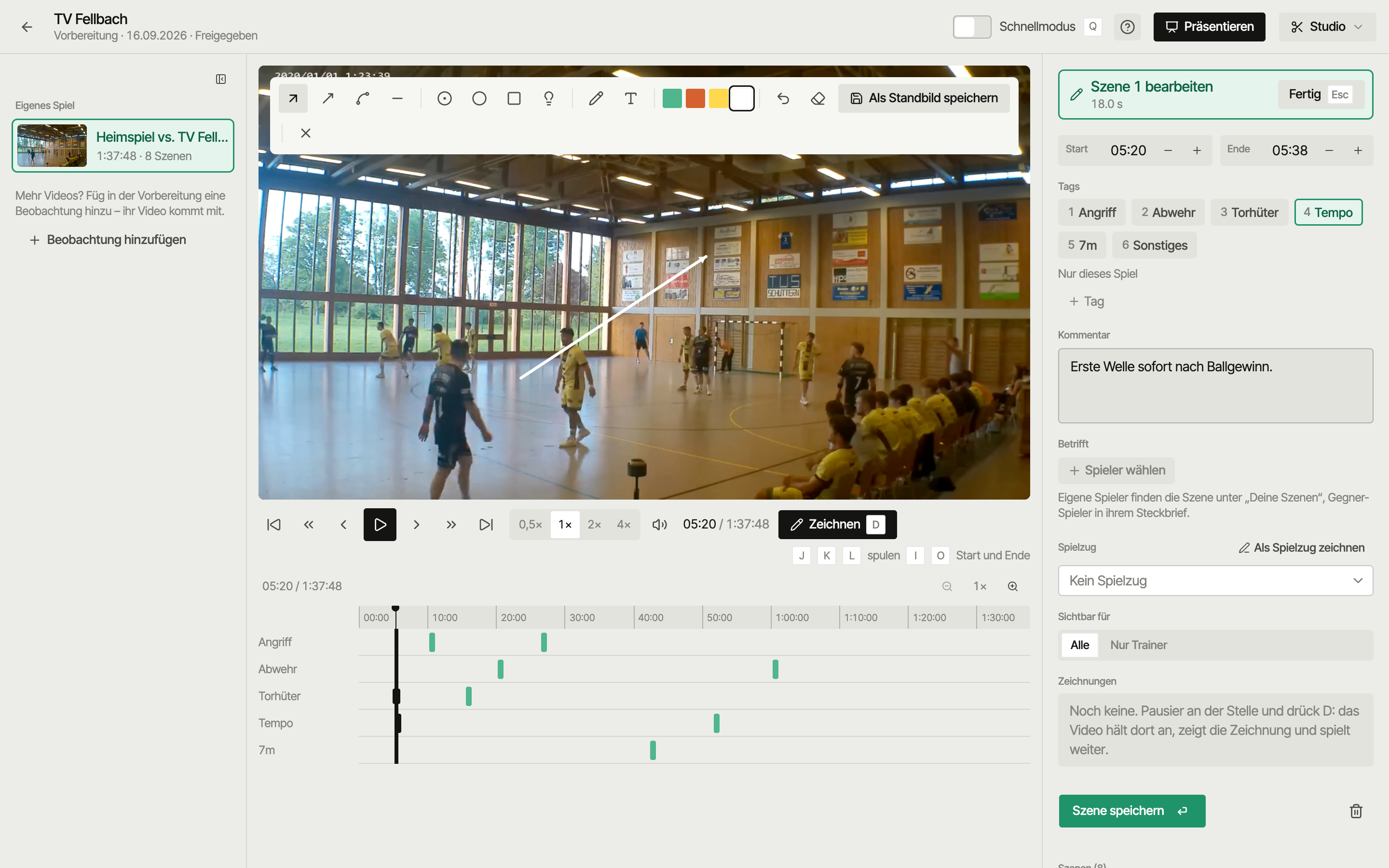
- Select a scene (drawing only works on saved scenes).
- Pause at the right spot and press Draw (
D). - Draw — tools: Arrow, Pass (dashed), Run (freehand with arrow), Line, Mark player (ring), Circle, Zone, Spotlight, Pen, Text. Plus colours and undo.
- Save as freeze frame.
Drawings in the inspector lists every freeze frame of the scene, each with its freeze length: 2, 4 (default), 6 or 10 seconds. While a freeze frame shows, space plays on immediately.
Keyboard (web)
| Key | Action |
|---|---|
Space | Play / pause (on a freeze frame: continue) |
K | Pause |
J | 5 s back |
L | Play, press again: 2× and 4× |
← / → | 1 s back / forward |
Shift + ← / → | 5 s back / forward |
, / . | One frame back / forward |
Home | Go to start |
I / O | Set start / end |
1–9 | Toggle tag |
Enter | Save clip |
Esc | Discard clip (while drawing: stop drawing) |
Q | Quick mode on/off |
D | Draw |
B | Collapse/expand the video sidebar |
M | Sound on/off |
When the cursor is in a text field (comment, new tag), keys belong to the field. The mouse wheel over the picture jumps too: with Shift in 5 s steps, with Alt frame by frame.
On the iPad
On the iPad the studio does the same as on the web — by touch:
- Swipe the timeline to scrub, pinch to zoom.
- Big buttons for Start and End.
- Draw with your finger or a pencil.
With a hardware keyboard attached, Space, J/K/L, I/O, 1–9 and Enter work. Arrow keys and Esc are web only.
There's no studio and no cutting on the phone — there you watch videos and scenes. Overview: Devices.
Next
- Present — show the scenes in a video session
- Sync — so actions land in the right spot
- Preparation — sharing and what players see