Videos
Where videos come from, where they belong and how you watch them — upload, link, use observations.
A video is the raw footage: the recording of a match, an observation or a play, e.g. from training. You cut scenes from it in the video studio and line it up with match time when you sync. What the terms mean exactly: Glossary.
Where a video belongs
Every video belongs to exactly one of four things. A match has no video or exactly one — whether it's your own match or an observation. There are no multiple videos or camera angles per match.
| Assignment | For |
|---|---|
| Own match | The recording of your match. Sync with the match report, actions jump into the video. |
| Observation | The recording of someone else's match. The assignment stays fixed. |
| Play | Your own footage of a play, e.g. from training. It sits on the play's page. |
| Unassigned | Everything else, e.g. a coaching video. |
A video never goes into another preparation on its own. Opponent footage comes in via the observation: link an observation to a preparation and its video comes along. The same observation can sit in several preparations, no new upload. Scenes, on the other hand, always belong to the preparation you cut them in.
The video of an earlier match of yours (e.g. the first leg) isn't part of the new preparation — you'll find that match there under Earlier matches.
Adding a video
In the preparation, area Video & scenes, the main button is Add observation — the observation's video comes along. As long as your own match has no video yet, Match video sits next to it:
| Option | What happens |
|---|---|
| Upload video | The file plays locally in the studio right away while the upload keeps going in the background. So you can start cutting immediately. |
| Link video | YouTube or a direct video URL. Works on every plan. To cut in the studio you need an uploaded file. |
Uploading is part of the Pro plan; a link works on every plan. If a match already has a video, delete it first if you want to use another one — so upload your best recording right away.
You upload every video where it belongs, so it lands in the right place right away:
- Match video: on the match page or in its preparation.
- Observation: on the observation's page.
- Play: on the play's page under Videos.
- Unassigned: under Videos via Upload video.
On a match's Overview you'll find the video card. Open lets you pick Watch, Studio, Sync or Track — depending on device and permissions. Without a video it shows Add video. If a match has a video you're allowed to see, it carries the badge Video in the match list and Video available in the match header.
All videos
Videos (/videos) collects all of your team's videos — in the sidebar on the web, as its own section in the app. The filter separates match videos, observations, plays and unassigned. Click one to open its detail page.
The video detail page
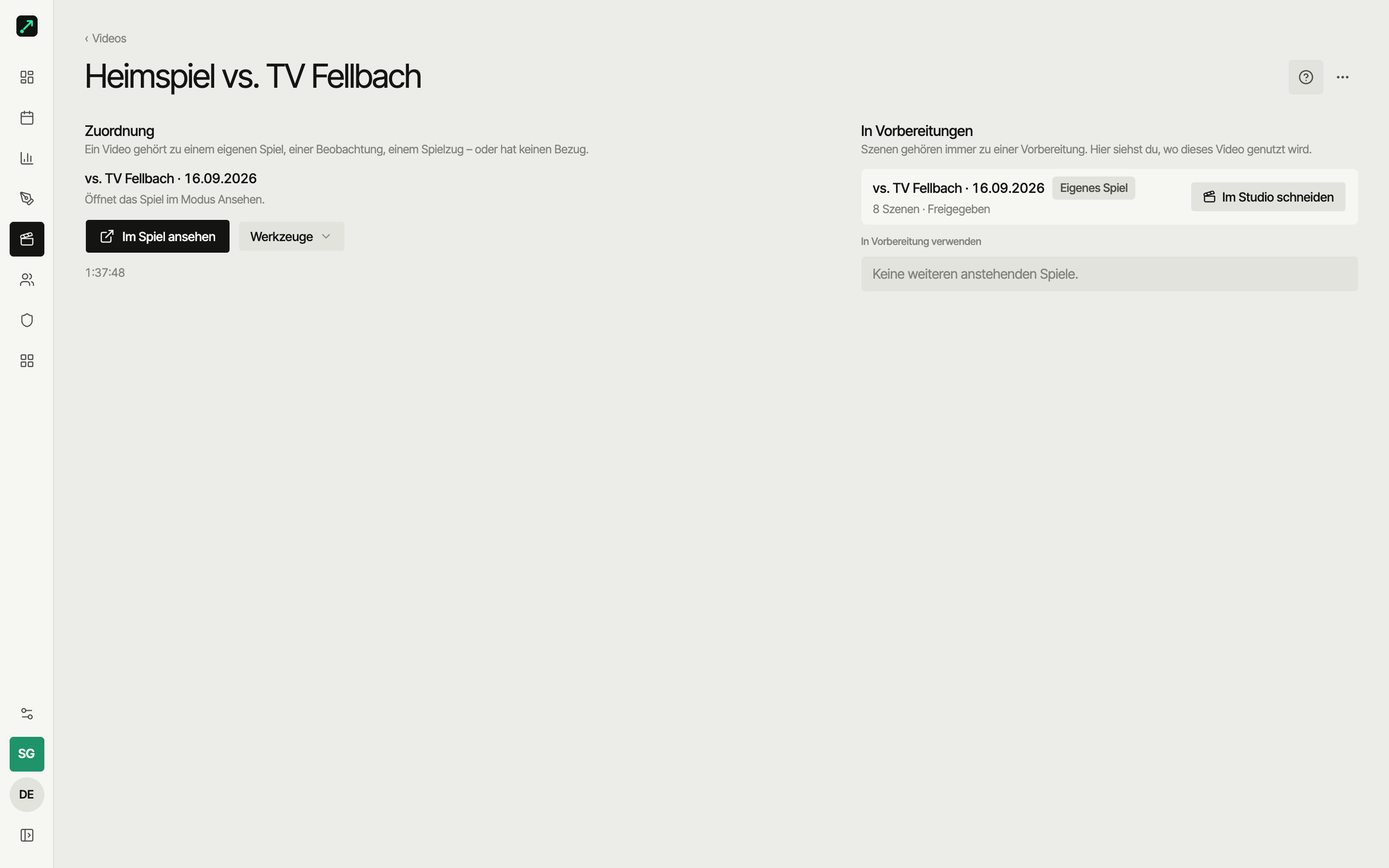
The page /videos/$id answers: what does this video belong to, and where is it used?
- Assignment — what the video belongs to, plus a button that says where it leads: Watch in match, Watch in scouting match, Go to play or Watch video (unassigned). Next to it, the Tools menu with studio, sync and track.
- Change assignment (⋯ menu, admins only) — for videos in the wrong place: to one of your matches, a play or unassigned. Scenes move along, anchor points get reset. Observation videos stay fixed.
- In preparations — where the video is used, with scene count and Cut in studio. For your own match, that's its preparation (Own game). For an observation's video, it's every preparation the observation is linked to; Remove from preparation takes the observation and its video out there.
- Use in a preparation (observation videos) — pick an upcoming match, then Add and cut: the observation gets linked to its preparation and the studio opens there.
Watch
Watch is the player for everyone — coaches and players alike. It's for watching only, cutting happens in the video studio. Back at the top left takes you to the previous page.
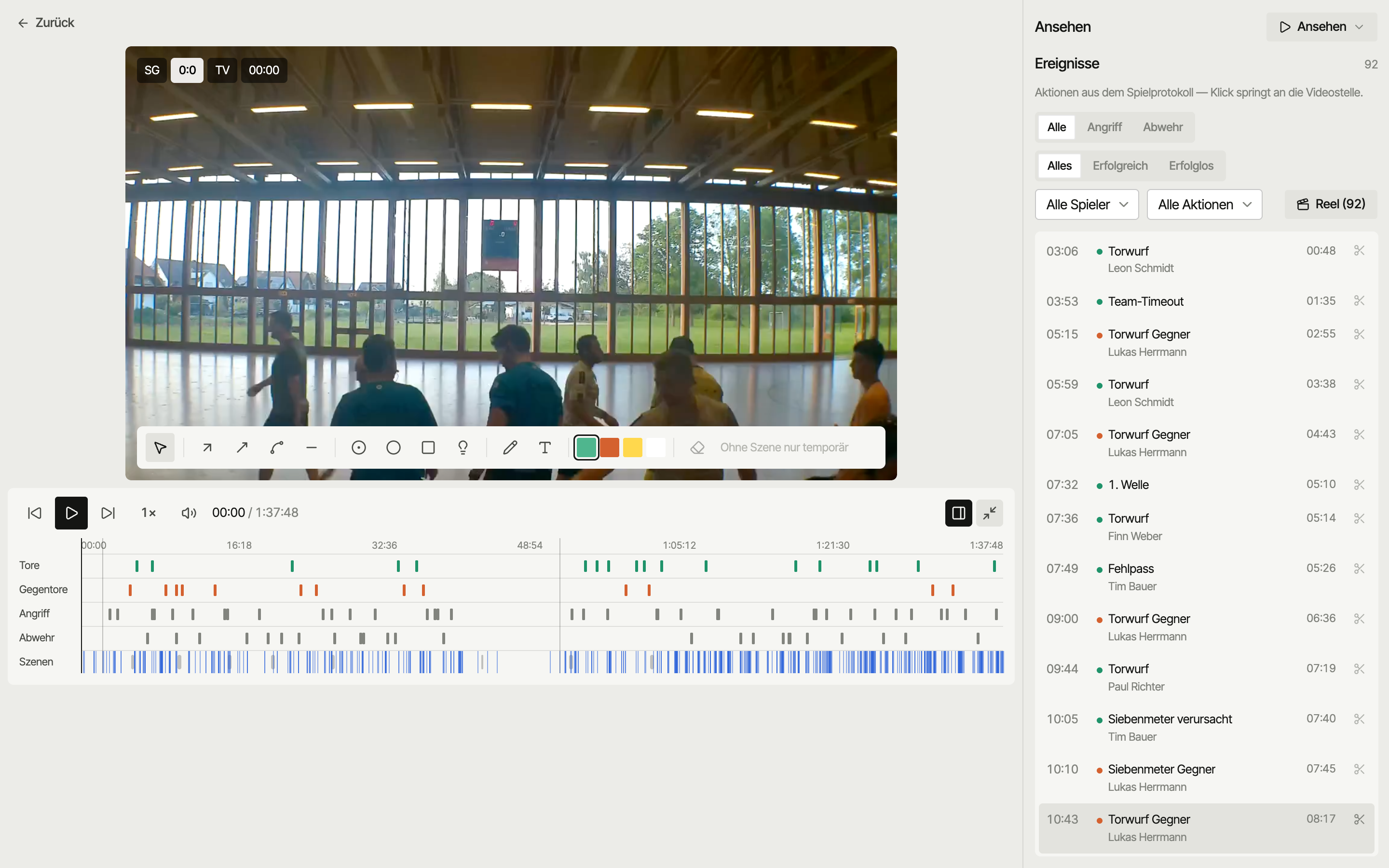
- For one of your tracked matches, the action list from the match log sits next to the video. Clicking an action jumps to the right spot — provided the video is synced.
- Filters narrow the list: by player, action, phase (attack/defence) and outcome.
- Reel plays all filtered actions back to back.
- On the web and on iPad, the scissors on an action open the studio at that spot (coaches). There's no cutting on a phone.
Players only see match videos through a shared preparation. They never see the raw video of an observation — only the shared scenes from it. Videos of a play are visible to every team member.
Next
- Video studio — cut, tag, draw
- Sync — line up match time and video time
- Preparation — the folder where it all comes together