Sync
Line up match time and video time — using the times in the match report, one check per half, otherwise in expert mode.
Sync connects a video to the match log. Afterwards every tracked or imported action jumps to the right spot when you watch, reels cut themselves, and a scene made from an action lands right away. Sync works on the web and on the iPad, as part of the Pro plan.
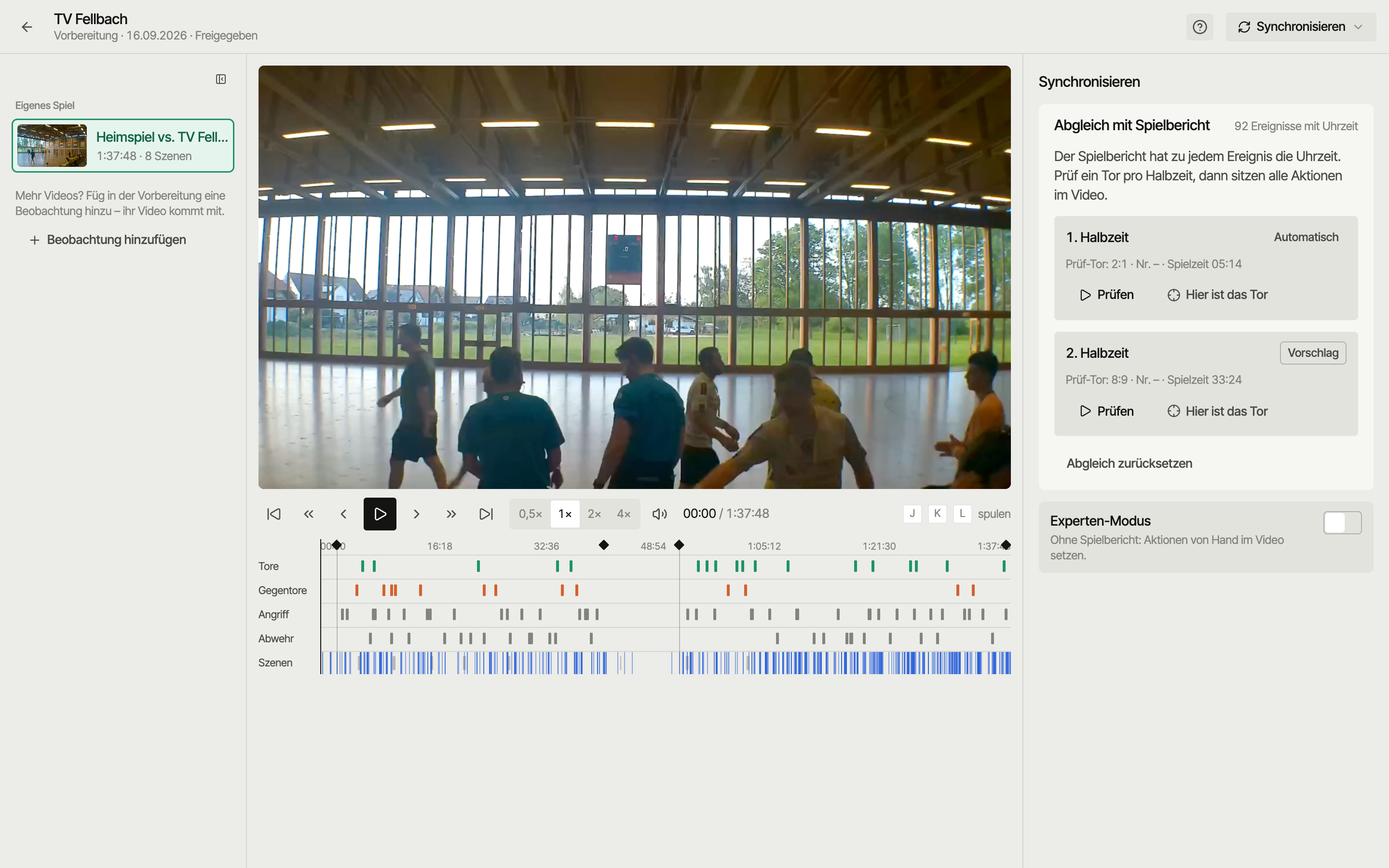
Sync: match time meets video time
The camera keeps rolling while the match clock stands still — timeouts, halftime, injury breaks. So you can't just convert a match minute into a video minute. SportsFlow needs a link between the two. Sync lives on the video: if the video sits in several preparations, you still only sync it once.
You open Sync
- on the match Overview via Open → Sync on the video card,
- on the video detail page via Tools,
- in the preparation's After the match section.
Aligning with the match report
The official match report (the Handball4All PDF) has the time of day for every event: 19:42:17 goal to 5:4 by No. 7. The video file knows when it was recorded. Together, that tells SportsFlow where every event sits in the video — all that's missing is one offset per half. The match report comes in via the schedule import or Import match report on the match.
One video, the whole match
A match has exactly one video, and it shows the whole match. If the two halves are in two files, merge them into one before uploading — single halves can't be synced.
| Recording | What happens |
|---|---|
| Camera keeps running | The 2nd half takes the 1st half's offset until you check it yourself. Usually one click is enough. |
| Stopped at halftime or halftime cut out | Check both halves separately — each gets its own offset. |
Automatic — only when it's sure
SportsFlow suggests the offset itself: from the file's recording time and the whistles it detects in the audio. A suggestion is only applied when it's reliable. Per half you see the status:
| Status | Means |
|---|---|
| Confirmed | You checked it. |
| Automatic | Reliable suggestion, already applied. A quick look doesn't hurt. |
| Suggestion | Not reliable enough — please check. |
| Open | No suggestion. Scrub to the check goal yourself. |
Checking
For each half SportsFlow picks a check goal, e.g. "Check goal: 5:4 · No. 7 · match time 12:31".
- Check jumps 6 seconds before the goal and plays.
- If the goal falls as expected: Looks right.
- If it falls somewhere else: scrub to the goal and press Goal is here — the offset is set to that spot.
After that, every action in the half lines up. Reset sync starts over.
Without a match report with times
Matching needs at least 5 actions with a timestamp. A match you tracked by hand only gets them once the match report is imported. If they're missing, Sync explains how to import the match report afterwards:
- Match linked to handball.net: Check match report opens the report check right there. Pick the categories you didn't track (penalties or timeouts, for example) and import them.
- Not linked: Go to handball.net import — link the match to the official game there, the match report comes along.
Someone with the admin permission starts the import. Matching is ready afterwards. If that's not an option, place the actions by hand in expert mode.
Expert mode
The Expert mode switch shows the check for single actions and the details.
- With a match report: if one action is off, select it in the list, scrub to the right spot and press Now! — the action's match time is set to that video position. The Without shot placement filter shows shots without a goal point that you can add from the video here.
- Without a match report: scrub to the marked action and tap It's here — it becomes an anchor point and all other actions follow. One anchor point per half is usually enough.
Details lists the anchor points with match time and video time; you can delete single ones. Anchor points also appear on their own:
- From live tracking: start, stop and corrections of the match clock are logged.
- From the audio track: for uploads, SportsFlow looks for sirens and whistles and suggests matches to tracked goals. The list shows each match to check or dismiss.
Limits
- Only after full time: the match report only exists once the match is over.
- Too few events: if the report has hardly any events with times, alignment isn't available and you set anchor points in expert mode.
- Tracking afterwards: if you track afterwards or at a speed other than 1×, no anchor points come from the match clock. Existing ones stay.
- Observations have no clock — their videos aren't synced.
There's no Sync on the phone — use the iPad or the web.
Next
- Videos — watch, actions, reels
- Live tracking — tracking on video
- Schedule import — where the match report comes from